

Quoter integration
Quoter + Connectbooster
Our ConnectBooster integration allows MSPs to streamline cash flow and scale revenue with an automated collections and payment process.
Our most powerful payments and A/R integration. ConnectBooster allows MSPs to streamline cashflow and scale their businesses with a fully-automated collections and payment processing.
ConnectBooster is a payment automation platform for IT service providers and recurring revenue businesses. It automates invoicing, payment collection, and reconciliation, integrating with accounting software, CRMs, and PSA tools. By streamlining billing processes and improving cash flow, ConnectBooster saves time, reduces manual tasks, and enhances the customer payment experience.
Integration overview
What is ConnectBooster?
ConnectBooster is a payment automation platform for IT service providers and recurring revenue businesses. It automates invoicing, payment collection, and reconciliation, integrating with accounting software, CRMs, and PSA tools. By streamlining billing processes and improving cash flow, ConnectBooster saves time, reduces manual tasks, and enhances the customer payment experience.
Quoter integrates with ConnectBooster.
Why Quoter + ConnectBooster?
When integrated with Quoter, ConnectBooster gives your customer the ability to pay their for quotes when and where it’s convenient for them.
Accept payment via ACH, e-Check, or credit card Your customers can electronically accept, sign, and pay for quotes, either as a deposit amount or full payment.
Vaulted customer payment information saved to ConnectBooster Your customers can easily select an existing payment method when making a payment.
Get paid faster When your customer accepts their quote, their existing payment information is conveniently and securely retrieved.
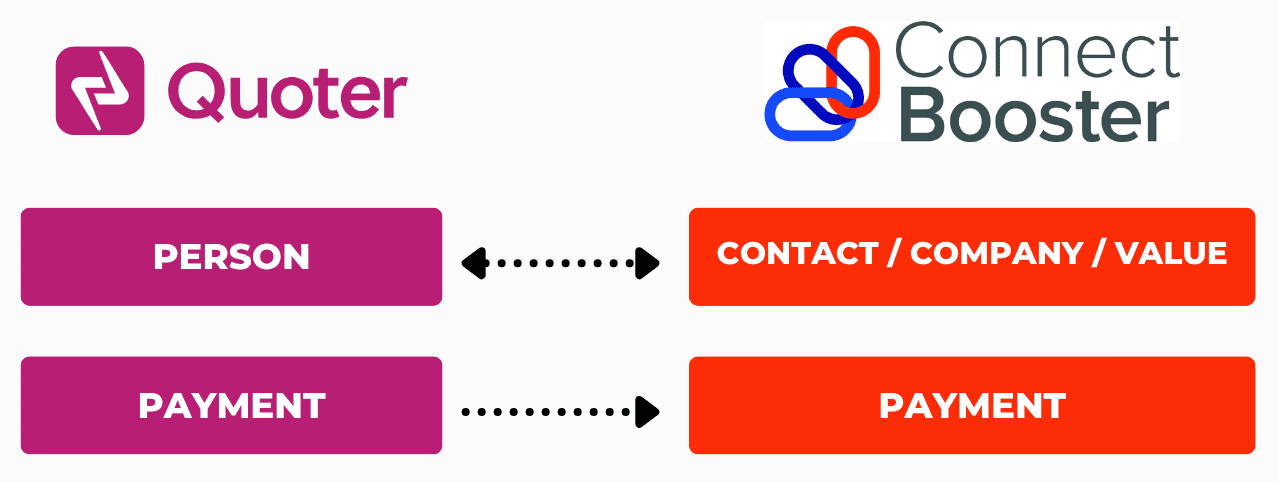
How to integrate ConnectBooster + Quoter?
In your Quoter Account, go to Settings > Payment Gateways and select ConnectBooster from the Type dropdown .
Follow the step-by-step guide below:
Autotask CSATCustomer satisfaction survey module integrated into Autotask PSA, enabling MSPs to collect client feedback and ratings after ticket resolution. IT GlueIT documentation platform for MSPs centralizing passwords, configurations, SOPs, and runbooks with deep PSA and RMM integrations.
 Autotask PSAProfessional services automation platform providing unified ticketing, billing, project management, and CRM capabilities for managed service providers.